
Hunter 4G Mini
Kompaktowa i niezawodna.
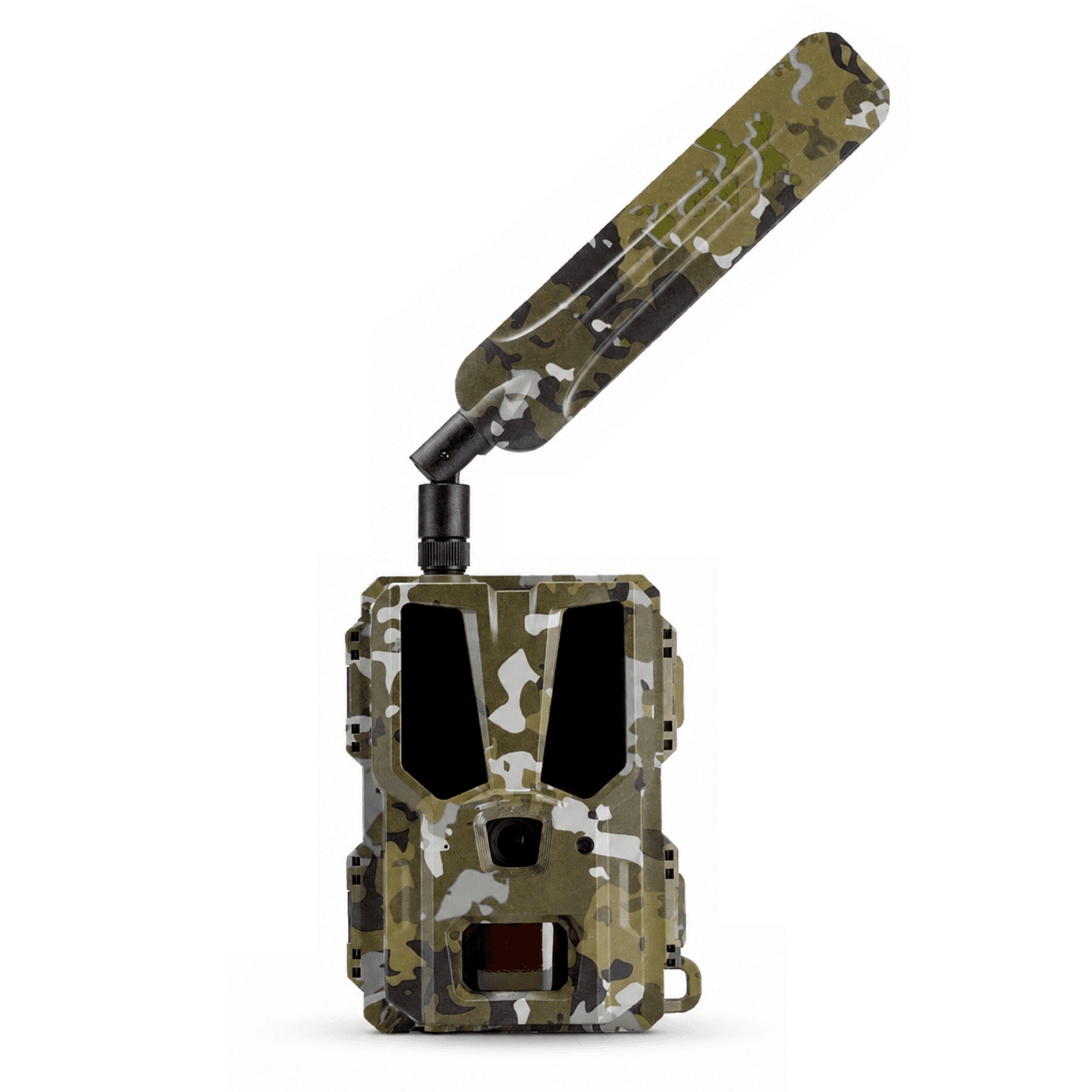
Uchwycić zwierzynę z imponującą szczegółowością dzięki naszej kompaktowej fotopułapce 4G. Z rozpoznawaniem AI, natychmiastowymi powiadomieniami i miesięczną żywotnością baterii.
Prosto z
poradnika.
Zobacz cały poradnik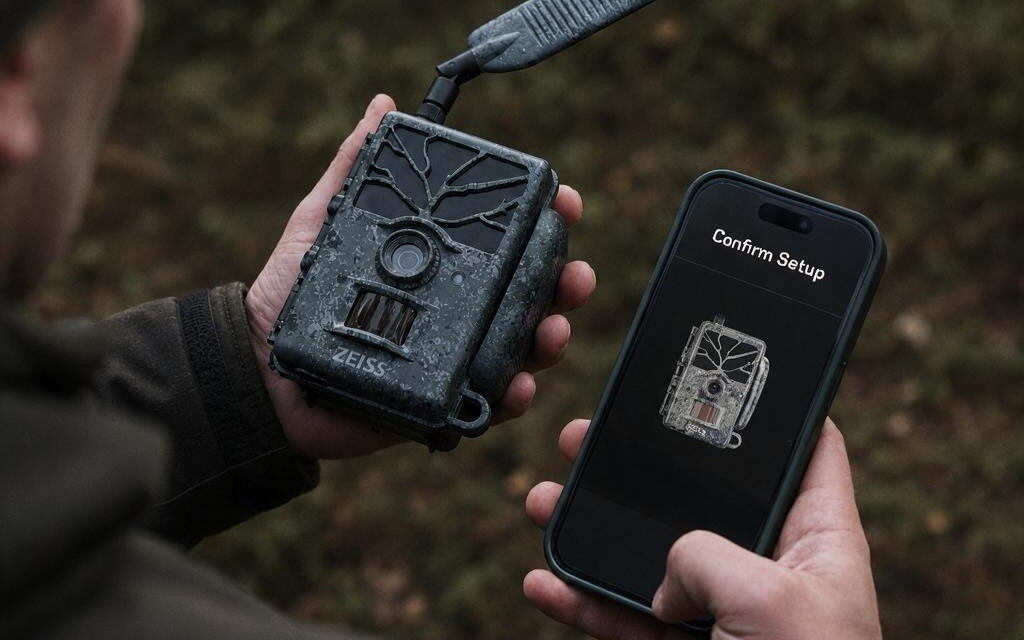

Podłączanie Zeiss Secacam do Modernhunter
Instrukcja krok po kroku: jak sprawić, by zdjęcia z fotopułapki Zeiss Secacam trafiały do Modernhunter dzięki przekazywaniu pocztą e-mail, z indywidualnym adresem kamery, zrzutami ekranu z obu aplikacji i rozwiązywaniem problemów.
Czytaj artykuł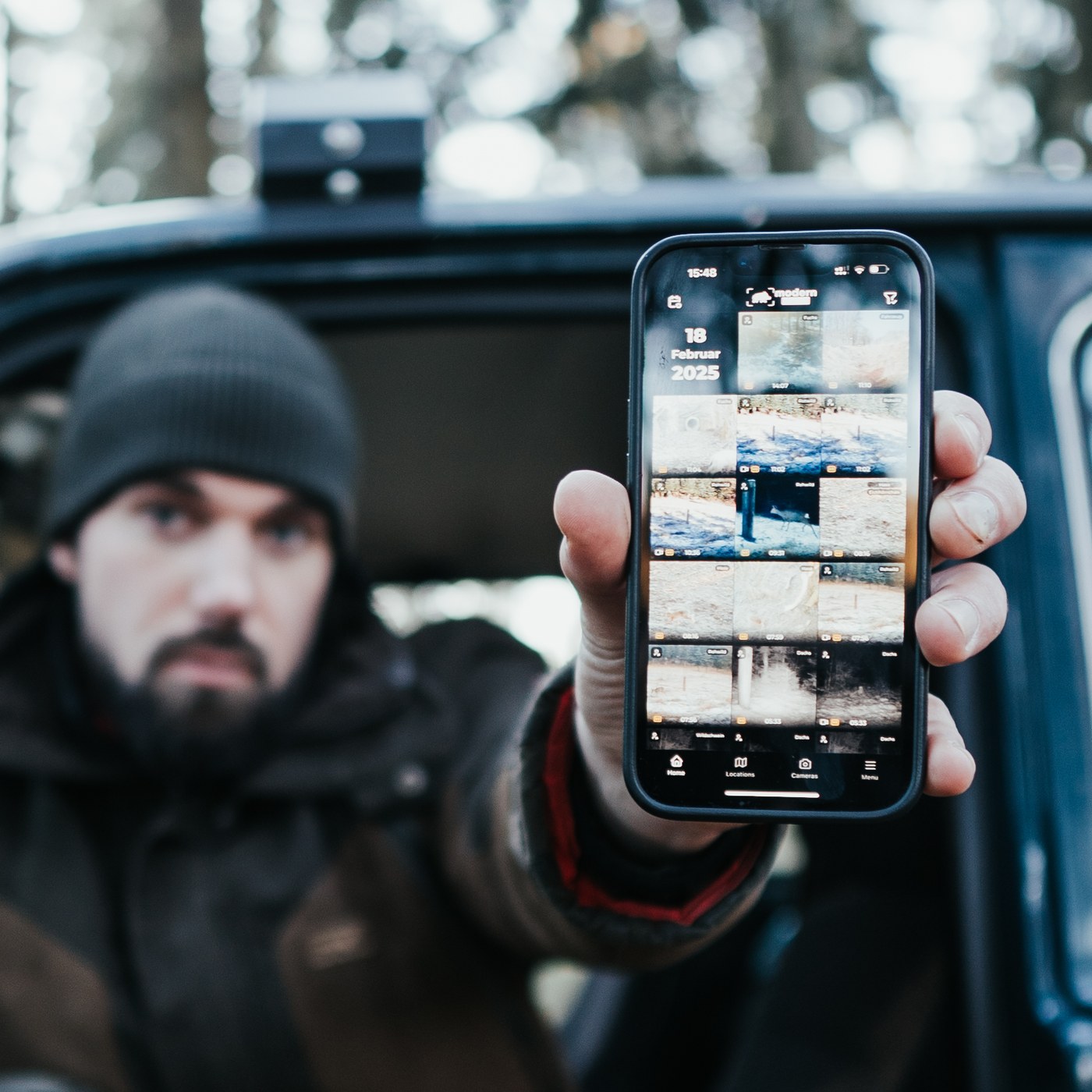
Nowa aplikacja Modernhunter: wszystkie funkcje wyjaśnione
Wszystkie nagrania z Państwa fotopułapek w jednym miejscu: jak zbudowana jest nowa aplikacja Modernhunter i jak dzięki filtrom HD, Ulubione i AI oraz kalendarzowi w kilka sekund znajdą Państwo dokładnie te zdjęcia, których szukają.
Czytaj artykuł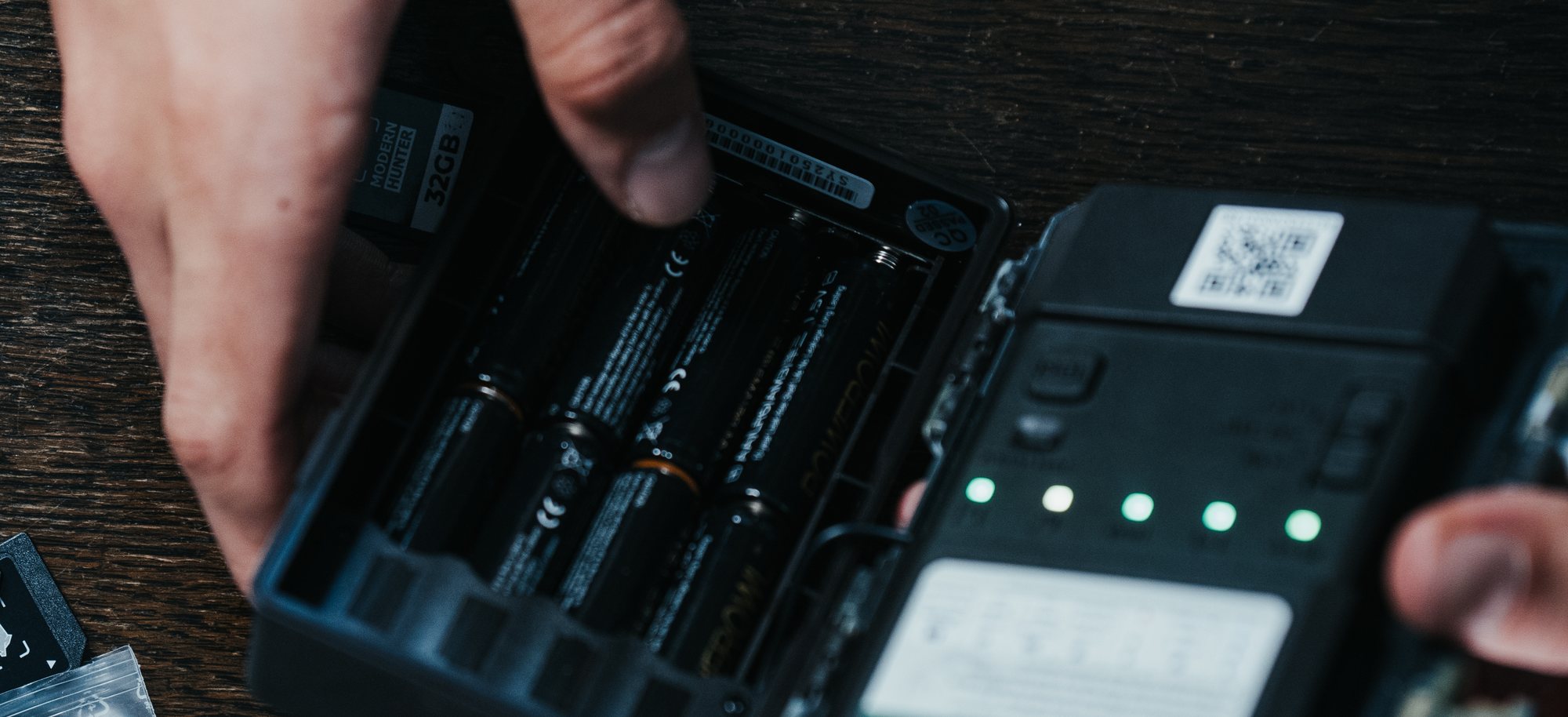
Baterie i akumulatory do fotopułapek
Alkaliczne, lit jednorazowy, NiMH czy litowo-jonowe: które ogniwo pasuje do twojej fotopułapki – i dlaczego pojemność jest przy tym złą liczbą.
Czytaj artykułNajniższe koszty eksploatacji
Przy kosztach od zaledwie 0,8 centa (1 moneta) za wysłane zdjęcie mamy jedno z najtańszych rozwiązań na rynku, jednocześnie spełniając wszystkie wymagania, jakie dzisiaj można mieć wobec karty SIM do fotopułapki.
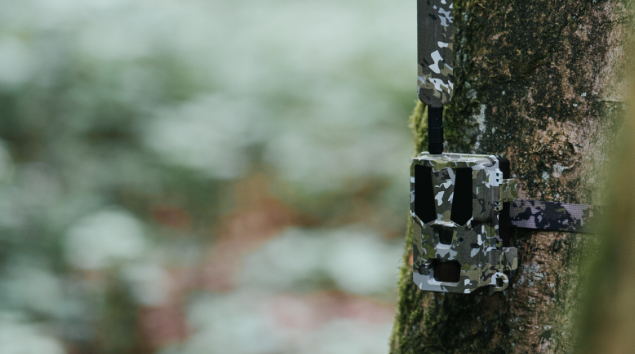
Elastyczne zasilanie i długa żywotność
Hunter 4G Mini może być zasilany 8 × bateriami AA. Dla szczególnie długich zastosowań kamera może być dodatkowo podłączona do panelu słonecznego, akumulatora, zewnętrznej baterii lub zasilacza – idealna do ciągłej pracy w łowisku lub w miejscach trudno dostępnych.
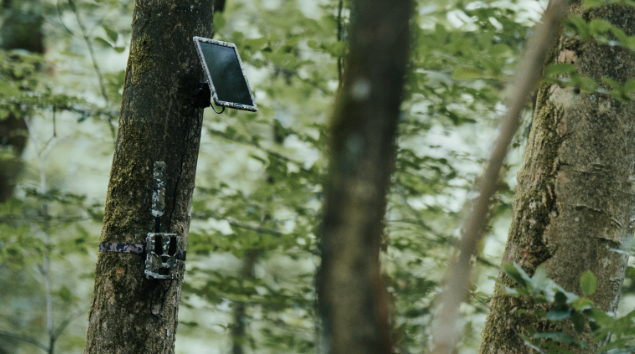
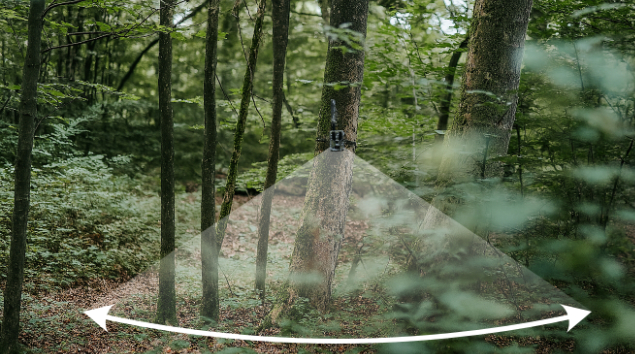
Szeroki 60° kąt widzenia dla większego przeglądu
Hunter 4G Mini oferuje rozszerzony kąt widzenia 60° – wyraźnie szerszy niż w wielu standardowych fotopułapkach z 47° lub 50°. W ten sposób uchwycisz więcej z tego, co się dzieje w jednym ujęciu. Dzięki nowoczesnemu formatowi nagrywania 16:9 nagrania są idealnie dostosowane do wyświetlania na smartfonach i tabletach – idealne do szybkiego przeglądu w drodze w aplikacji.
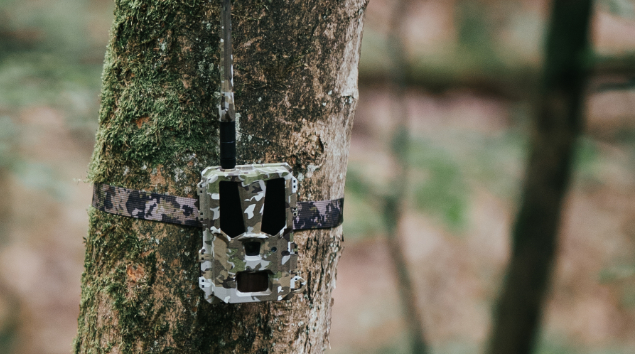
Mała i doskonale zamaskowana
Prawdziwym atutem jest również kompaktowy design. Kamera jest znacznie mniejsza niż wiele modeli na rynku – a przy tym wyposażona w prawdziwy wzór kamuflażu. Właśnie podczas polowania my myśliwi stawiamy na dobre maskowanie – więc logiczne jest również optymalne ukrycie technologii. A dobre maskowanie oznacza również lepszą ochronę przed kradzieżą.
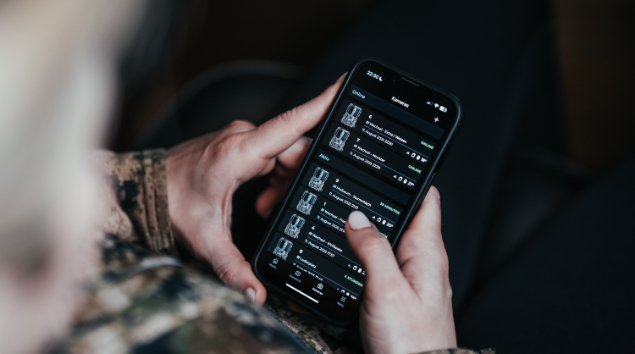
Sterowanie kamerą
Wszystkie ustawienia kamery można wygodnie dokonywać za pośrednictwem aplikacji Modernhunter. W ten sposób odpadają uciążliwe wyjazdy do kamery, aby coś zmienić w menu kamery.
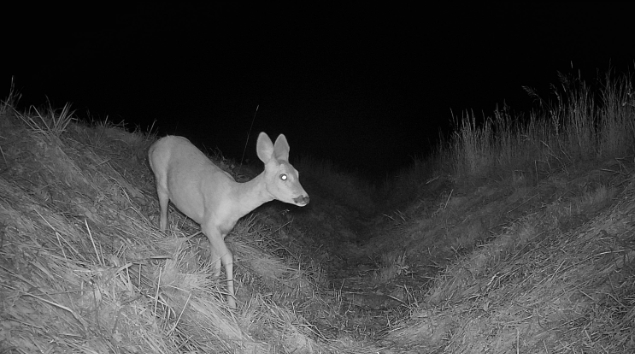
Inteligentne oświetlenie
Adaptacyjne zarządzanie błyskiem zapewnia równomierne oświetlenie, zapobiega prześwietleniu i jednocześnie oszczędza baterię – dla większej wydajności i lepszych zdjęć.
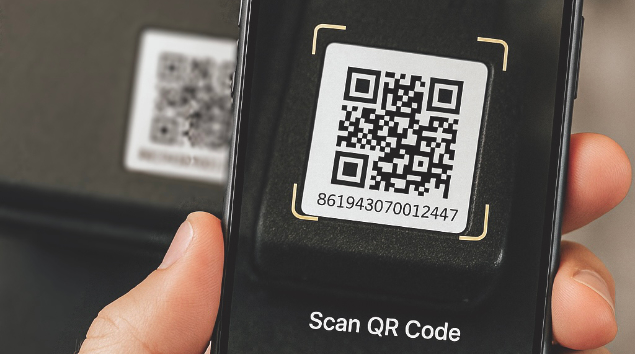
Skonfiguruj w kilka sekund
Gdy kamera jest w trybie konfiguracji i diody LED świecą na zielono, można ją po prostu włączyć – resztą zajmie się aplikacja. Bez względu na to, czy w domu czy w drodze: wszystkie ustawienia wygodnie przez smartfon.
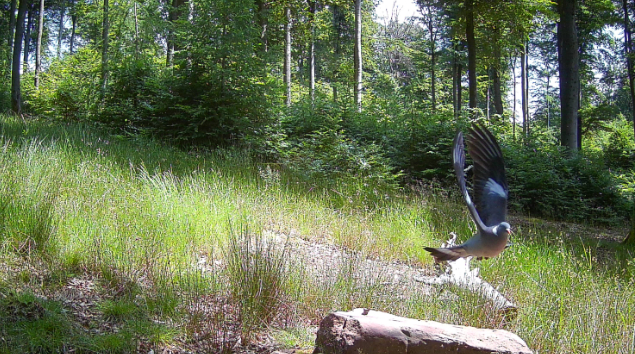
Ekstremalnie krótki czas wyzwalania
Nowoczesna technologia PIR-Fresnel umożliwia czas reakcji poniżej 0,45 sekundy – dla krystalicznie ostrych zdjęć momentu bez opóźnienia.
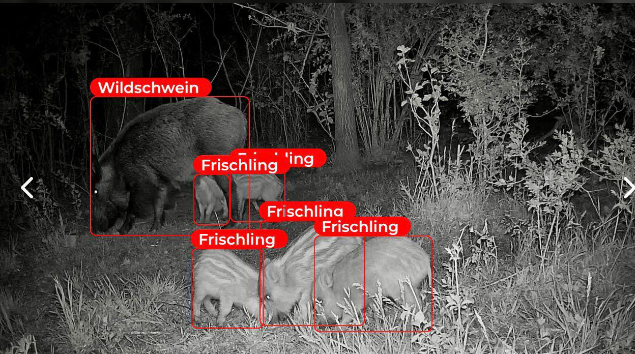
Rozpoznawanie obiektów AI
AI analizuje otrzymane nagrania i niezawodnie rozpoznaje ludzi, zwierzęta lub pojazdy – idealne do szybkiego wyboru zdjęć i ukierunkowanych powiadomień w aplikacji. Jednym kliknięciem wszystkie puste nagrania znikają.
Dalsze funkcje w skrócie
| Funktion | Beschreibung |
|---|---|
| Kompresja wideo H.265 | Kamera wykorzystuje zaawansowaną metodę kompresji H.265 – znacznie wydajniejszą niż konwencjonalne standardy. To oszczędza objętość danych i zapewnia szybszy transfer bez widocznej utraty jakości. |
| Aktualizacje oprogramowania układowego Over-the-Air | Aktualizacje są automatycznie instalowane na kamerze – zupełnie bez demontażu lub wymiany karty SD. |
| Filmy z dźwiękiem | Filmy z dźwiękiem w Full HD o długości do 20 sekund. |
| Nagrywanie pętlowe (bufor pierścieniowy) | Gdy karta SD jest pełna, kamera automatycznie nadpisuje najstarsze nagrania. W ten sposób pozostaje gotowa do nagrywania i może nadal wysyłać. Karta SD 32 GB jest w zestawie. |
| Czas pracy | Kamera jest aktywna tylko w ustalonych godzinach. |
Dane techniczne
| Wymiary kamery | 9,6 x 12,9 x 7 cm |
| Wysokość z anteną | 31 cm |
| Waga | 298 g (w tym antena) |
| Pole widzenia | 60° |
| Czujnik | Pasywna podczerwień (PIR) |
| Zasięg wykrywania | ~25m |
| Szybkość wyzwalania | 0,4 s |
| Sieć komórkowa | 4G z kartą SIM |
| Sterowanie aplikacją | Modernhunter App (iOS & Android) |
| Rozdzielczość (oryginał) | 3072×1728 (3MP interpolowane do 5MP) |
| Transmisja miniatur | obsługiwane (768×432, 1536×864) |
| Zdjęcia seryjne | 1P / 2P / 3P |
| Format pliku | .jpeg |
| Rozdzielczość (oryginał) | 1920 × 1080 (1440P) |
| Transmisja miniatur | obsługiwane (720P, 1080P) |
| Długość wideo | 5 sekund, 10 sekund, 15 sekund, 20 sekund |
| Format pliku | .mp4 |
| Tryb | Obsługiwane (czarno-białe) |
| LED | No-Glow (54 sztuki, 940 nm) |
| Pamięć lokalna | Karta SD (8 – 128 GB), karta SD 32 GB w zestawie |
| Pamięć w chmurze | za darmo |
| Transmisja miniatur | Przez sieć 4G |
| Transmisja zdjęć oryginalnych | Przez sieć 4G lub przez port USB-C |
| Zdalna aktualizacja (OTA) | obsługiwane |
| Aktualizacja lokalna | Przez kartę SD |
| Funkcja AI | za darmo zawarte w aplikacji Modernhunter |
| Baterie | 8 × baterii AA na zestaw |
| Port ładowania | Port DC (zasilacz 12V–2A) |
| Rozmiar portu DC | 4,4 mm × 1,6 mm |
| Wodoodporność | IP66 |
| Temperatura pracy | –20 °C do +55 °C |
| Temperatura przechowywania | –25 °C do +60 °C |
| Wilgotność pracy | 5 % – 90 % |
| Wilgotność przechowywania | 40 % – 60 % |
| Certyfikaty | FCC, CE, RoHS, IP66 |
Zmiany w wykonaniu i zakresie dostawy, które służą rozwojowi technicznemu, są zastrzeżone.
Zawartość opakowania
- Fotopułapka Hunter 4G Mini
- Antena kamuflażowa
- Pas drzewny kamuflażowy
- Karta pamięci SD 32GB
- Karta SIM Modernhunter