
Dörr photos
to Modernhunter.
With Modernhunter you collect the images from your trail cameras in one system, independent of the manufacturer – including Dörr. This guide shows you step by step how every photo lands automatically in your Modernhunter account.
Two ways – one goal.
On older Dörr cameras you can enter an email address directly in the camera to which the photos should be sent. That way they can send straight to Modernhunter.
The newer camera models – e.g. Cloud Mini 4G LTE or Cloud Pro 4G – send exclusively to the Dörr server, and there we have to set up SMTP forwarding to Modernhunter via the Dörr app.
Which camera do you have?
Choose your camera type – the matching step-by-step guide unfolds below.
AOlder models · email-capableMy older Dörr camera sends to an email address entered in the camera
These Dörr cameras are a bit older and send photos the classic way, by email. You set up the camera once in Modernhunter and enter the generated receiving address directly in the camera – done.
Add the camera.
This is where you get your personal receiving address.
- Open the Cameras menu.
- Tap the plus icon in the top right and choose Standard camera.
- Select Dörr as the manufacturer, choose the matching camera model and confirm with Next.
- Assign a camera name and the location and confirm all details.
- Modernhunter now creates an individual email address for this camera.
Older, email-capable Dörr cameras can also be operated with the Modernhunter SIM card. Since these cameras send their photos by email, the Modernhunter SIM works without any problems here – unlike with the newer Cloud models.
Enter the address as the recipient.
Directly in your camera's email settings.
- In your Dörr camera's email settings, enter this Modernhunter address as the recipient.
- Save the setting.
BNewer models · CloudMy newer Dörr camera sends only to the Dörr server
These cameras – e.g. <span class="nowrap">Cloud Mini 4G LTE</span> or <span class="nowrap">Cloud Pro 4G</span> – send exclusively to the Dörr server. You add the camera in Modernhunter and then set up SMTP forwarding in the Dörr app that automatically sends every photo to Modernhunter.
Add the camera.
This is where you get your personal receiving address for the SMTP forwarding.
- Open the Cameras menu.
- Tap the plus icon in the top right and choose Standard camera.
- Select Dörr as the manufacturer, choose the matching camera model and confirm with Next.
- Assign a camera name and the location and confirm all details.
- Copy the displayed individual email address (format
xxxxxx@mh-cam.de) using the copy icon.
If you are asked for a Modernhunter SIM card, skip this step. Modernhunter SIM cards only send to the Modernhunter server, and newer Dörr cameras only send to the Dörr server. Therefore use a different SIM card in these models.
Set up SMTP forwarding.
Have the Modernhunter address you copied earlier ready.
- Open the Dörr app.
- Tap the camera icon at the bottom to get to the camera list.
- Select the desired camera.
- Scroll down to the Share section and choose SMTP Forwarding.
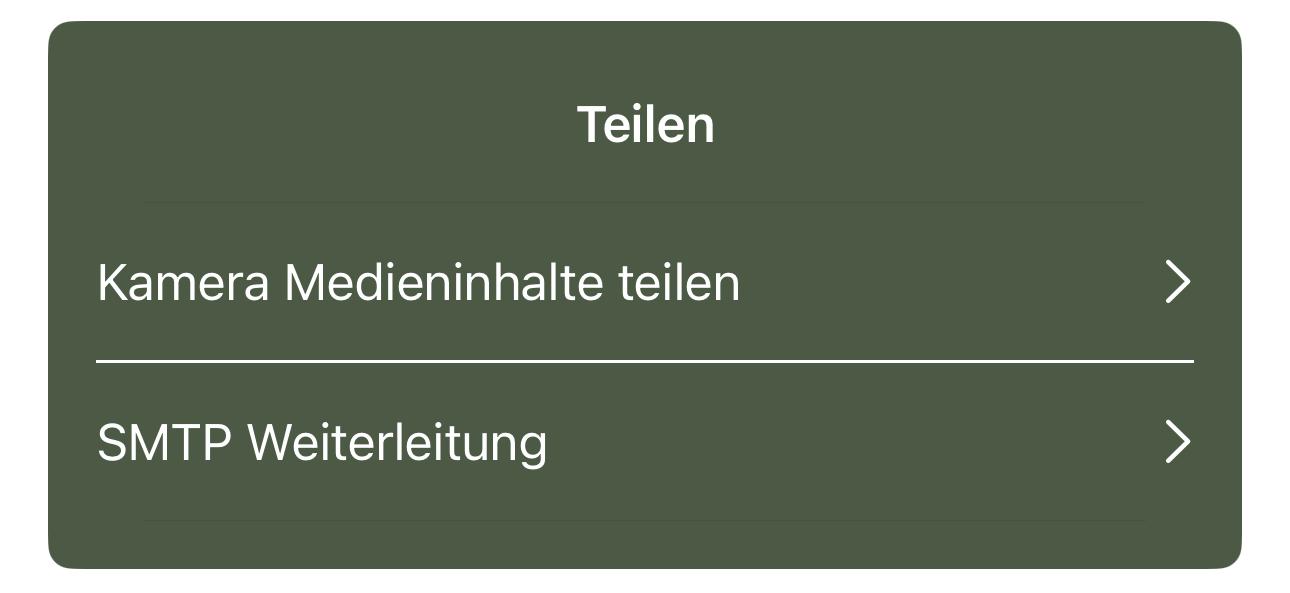
Share section → SMTP Forwarding - Tap the plus icon in the top right to create a new forwarding entry.

Add a new forwarding entry - Enter the following data (see table) and fill in the form completely.
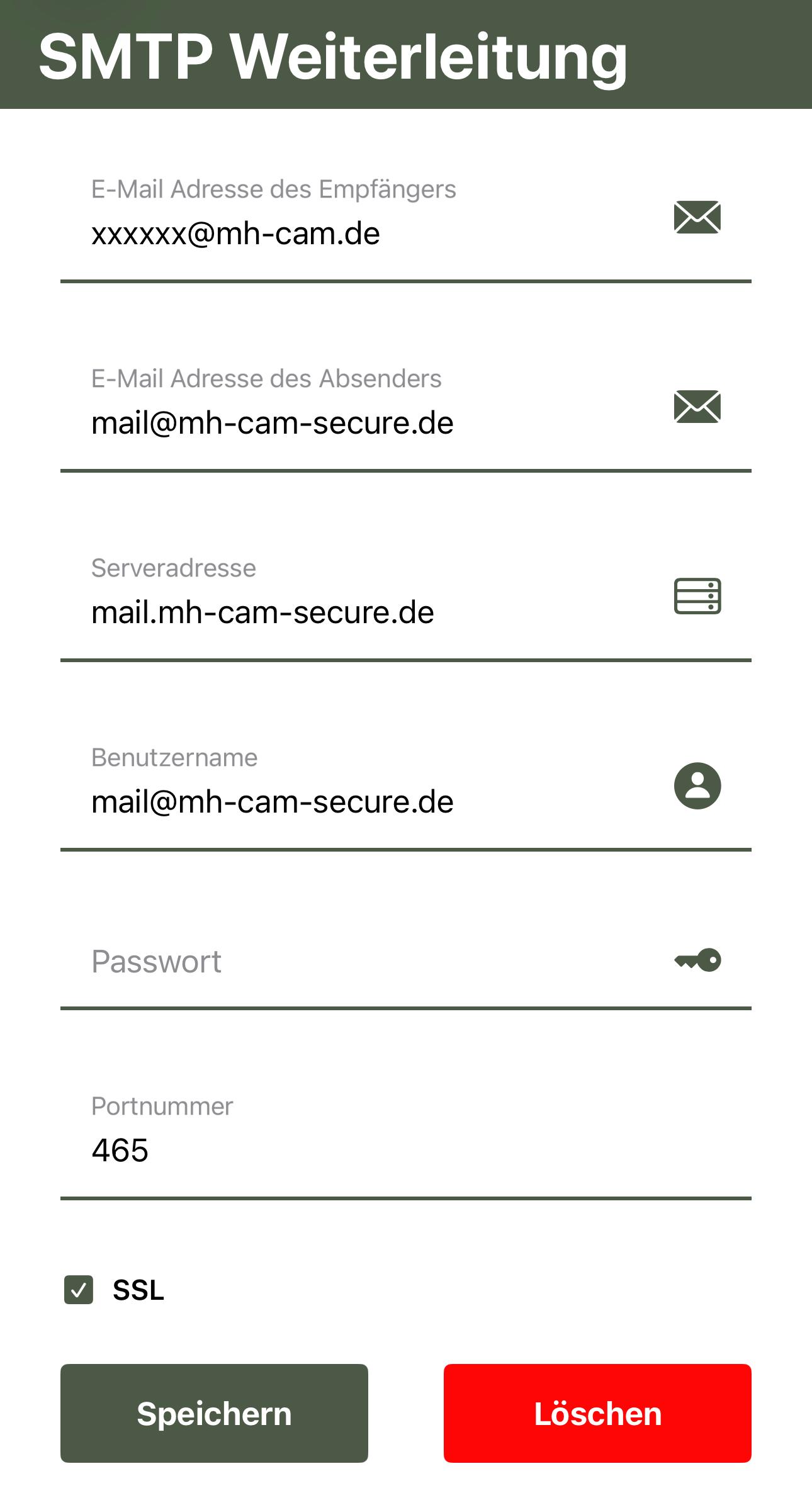
Completed SMTP form - Confirm at the bottom with Save.
| Field | Value |
|---|---|
| Recipient's email address | The address generated for this camera in the Modernhunter app and copied earlier. xxxxxx@mh-cam.de is only a placeholder here. |
| Sender's email address | mail@mh-cam-secure.de |
| Server address | mail.mh-cam-secure.de |
| Username | mail@mh-cam-secure.de |
| Password | hunter |
| Port number | 465 |
| SSL | yes |
The values must be exactly right – especially the server address, username, password, port 465 and SSL yes. It is best to paste the recipient address using the copy icon rather than typing it out.
Test it once – then it just runs.
With this short test procedure you make sure your Dörr photos pass through cleanly and arrive in the Modernhunter system.
- Is the Modernhunter address spelled exactly right (pasted via the copy icon)?
- Were all fields entered correctly for the SMTP forwarding (server, username, password, port 465, SSL yes)?
- Email-capable camera: Is the camera sending at all – i.e. mobile reception and enough battery?
- Cloud camera: Does the photo first arrive in the Dörr app?
- Trigger a test photo on the camera.
- Cloud camera: check whether the photo first arrives in the Dörr app.
- In the Modernhunter system, check whether the photo has arrived via your receiving address.
- If the photo arrives in the Dörr app but not at Modernhunter, the issue is with the SMTP forwarding – go through the values from the checklist.
- If nothing arrives in the Dörr app at all, the issue is with the camera or SIM setup in the Dörr app – not with the forwarding. Also check whether there are any photos on the SD card at all: if there are none, the SD card itself is often the problem and should be replaced.
All cameras – one account.
Your Dörr trail camera is now connected to Modernhunter. All photos land automatically in your Modernhunter account – together with the images from your other cameras, no matter which manufacturer. By the way, integrating cameras from other manufacturers is completely free with Modernhunter.