The Open Trail Camera App

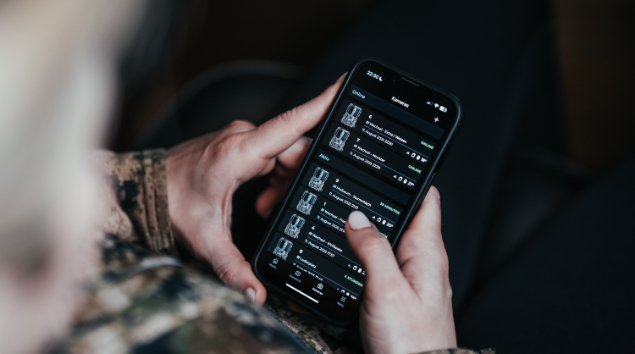
Designed to work with our cellular trail cameras, we developed the Modernhunter app. In addition to our cameras, the app works with almost all cellular trail cameras available on the market. This means you no longer need multiple trail camera apps on your smartphone. Download the app to your smartphone today!

Modernhunter App

All the features you need. In one app.

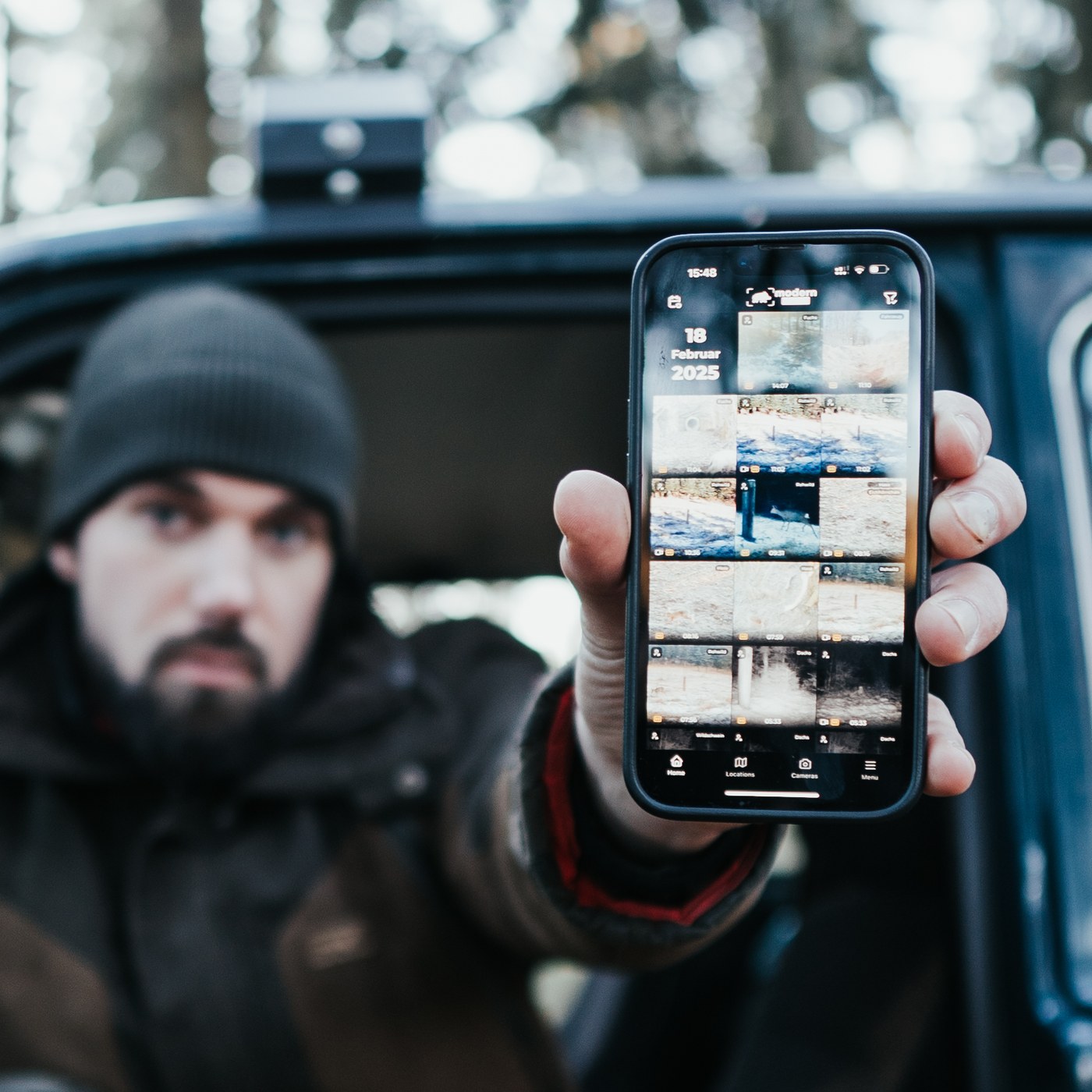
Modernhunter was developed for hunters who want to manage their trail cameras professionally. Regardless of the brand - with our app you have all your cameras in view and receive images directly on your smartphone.

Modernhunter App Screenshot

Multi-Camera Management

Manage trail cameras from different manufacturers in one app. The app supports almost all cellular trail cameras available on the market.

Modernhunter App Screenshot

Camera Control

Control your trail cameras directly from the app. Adjust settings such as photo and video resolution, PIR sensor sensitivity or transmission intervals.

Modernhunter App Screenshot

Location Management

Organize your cameras by locations rather than camera names. Move cameras flexibly between different locations.

Your hunting grounds. Always in view.

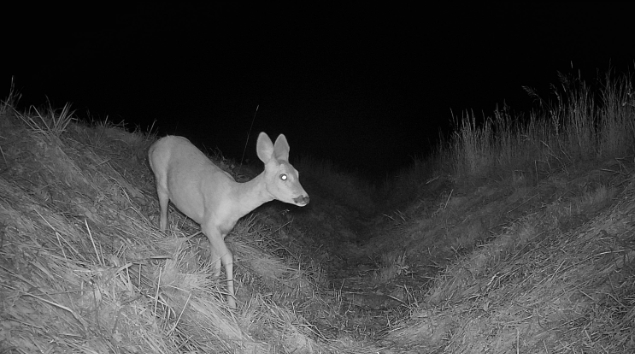
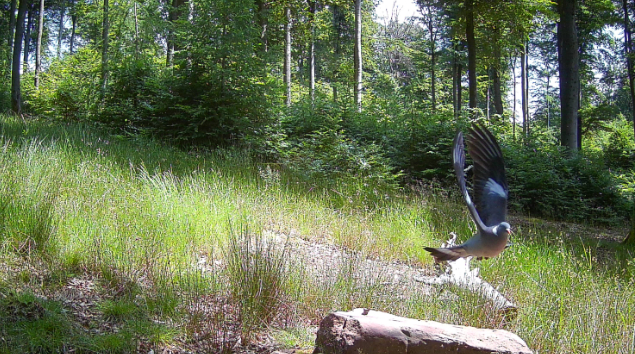
Download now for free and manage all your trail cameras in one place. Get instant notifications when something moves in your hunting grounds.

Frequently Asked Questions

Have more questions? Contact us.

    • How do I set up a Seissiger wildlife camera with Supersim in Modernhunter?

      Seissiger wildlife cameras with Supersim can be easily integrated into the Modernhunter app. Setup takes just a few steps. Step 1: Add camera Open the Cameras menu in the app Tap the plus icon in the top right corner Select Standard Camera Step 2: Select camera model Select Seissiger as the manufacturer Select Seissiger Universal as the model Confirm with Continue Step 3: Set name and location Assign a camera name Enter the location name where the camera is installed Tap Next Step 4: Skip the SIM card step Since your camera works with a Supersim card, you do not need to add a Modernhunter SIM card. You can simply skip this step. Step 5: Complete setup Check all details Confirm setup The camera will now be created in the system. Step 6: Enter forwarding email address Modernhunter automatically creates a unique email address for your camera Copy this email address Enter it in your Supersim account as a forwarding address Done Your Seissiger camera will now automatically send its recordings to Modernhunter via Supersim. The images will appear directly in your Modernhunter account.

    • How do I set up a SEISSIGER wildlife camera (standard version) with a Modernhunter SIM card?

      These instructions apply to SEISSIGER Special-Cam models in the standard version (SIM-free). They do not apply to the Supersim Edition. Follow these steps to set up your camera for use with the Modernhunter SIM card. Step 1: Create a camera in Modernhunter Open the Modernhunter app or the Modernhunter portal Go to Cameras and tap on the plus symbol Select Standard camera Complete the setup At the end, you will be shown a unique email address. This address will later be the recipient for the recordings from your camera. Please make a note of or copy this email address. Step 2: Download the PC program Download the Windows program WirelessPlus 0.5 Open the program on your computer Download link: Step 3: Load sample file Click on Load in the lower left corner. Load the file Seissiger_Modernhunter_Config.CFG. Download link: This file already contains the most important settings, such as APN and network parameters. Enter Modernhunter email address Go to the Recipients section in the program. Enter the email address you created earlier with Modernhunter in the Email 1 field. Step 4: Save configuration file Click Save as. Select MMSCFG.BIN as the file type. Save the file directly to an SD card. Step 5: Load settings into the camera Insert the SD card into your SEISSIGER Special Cam (standard version). Set the camera switch to SETUP Open the menu and select 2G or LTE Select Setup from SD and confirm The camera will now automatically apply all saved settings. Done Your SEISSIGER standard version is now connected to your Modernhunter account. From now on, the camera will automatically send all recordings to the stored recipient email address via the Modernhunter SIM card. The recordings will appear directly in your Modernhunter account.

    • How do I connect a Zeiss Secacam wildlife camera to Modernhunter?

      Follow these instructions to set up your Zeiss Secacam so that all recordings automatically appear in your Modernhunter account. Step 1: Create a camera on Modernhunter Open the Modernhunter app Go to Cameras and tap the plus icon in the top right corner Select Standard Camera Select Secacam as the manufacturer Select any Secacam model Tap Continue Assign a camera name Enter the location of the camera Skip the SIM card stepZeiss cameras use a Zeiss SIM card and not a Modernhunter SIM card Complete the setup At the end of the setup, Modernhunter will provide you with an individual camera code, for example: mh-123abc This code will be required in the next steps. Step 2: Rename the camera in the Zeiss Secacam app In order for Modernhunter to clearly identify the recordings, the camera name in the Zeiss Secacam app must contain the Modernhunter camera code. Open the Zeiss Secacam app Go to the Cameras page Select the camera you want to connect to Modernhunter Tap the gear icon in the top right corner Enter the Modernhunter camera code under Camera name Example:Secacam3 mh-123abc Important The code must be entered exactly as shown No spaces in the code No additional characters No typos Step 3: Share camera with Modernhunter Stay in the Zeiss Secacam app with the camera open Select Share Camera Tap Add New Contact Enter the following email address as the recipient secacam@mh-cam.de After adding the contact, Modernhunter must confirm the sharing request. This process may take some time. Once the sharing request has been confirmed, the setup is complete. Done Your Zeiss Secacam is now successfully connected to Modernhunter. The camera is created in Modernhunter The camera name contains the unique Modernhunter code The recordings are automatically forwarded to Modernhunter All new recordings appear directly in your Modernhunter account as usual.

    • How do I connect an ICU wildlife camera to Modernhunter?

      Follow these instructions to set up your ICU wildlife camera so that all recordings automatically appear in your Modernhunter account. Step 1: Create a camera in Modernhunter Open the Cameras menu in the Modernhunter app Tap the plus icon in the top right corner Select Standard Camera Select ICU Server as the manufacturer Select a suitable ICU model Confirm with Continue Assign a camera name Enter the location where the camera is installed Skip the SIM card step ICU cameras only use their own SIM card Confirm all details The camera will now be created in Modernhunter. You will then receive an individual camera code in the format: mh-xxxxxx This code is important for the next steps. Step 2: Set up email forwarding in the ICU app Open the ICU app Tap on your profile photo in the top right corner Select Email forwarding Tap on Add email address Enter the following email address exactly as shown icu@mh-cam.de From this moment on, all recordings from your ICU account will be forwarded to Modernhunter. Step 3: Customize camera names in the ICU app In order for Modernhunter to assign the recordings correctly, the camera name must be customized in the ICU app. Open the Cameras section in the ICU app. Select the camera you want to forward. Tap the pencil icon next to the camera name. Change the camera name to the code generated by Modernhunter. Example:mh-xxxxxx Important The camera name must contain the code. The code must be written exactly as it appears in Modernhunter. No additional characters. No typos. Done Your ICU wildlife camera is now successfully connected to Modernhunter. From now on, all recordings will be automatically forwarded to Modernhunter and will appear directly in your Modernhunter account.

    • How do I connect a Dörr wildlife camera to Modernhunter?

      Unfortunately, it is not yet possible to integrate Dörr wildlife cameras into Modernhunter. Current status The technical requirements for connecting Dörr cameras are not yet in place. Therefore, recordings from Dörr wildlife cameras cannot currently be transferred to Modernhunter. Outlook We are working on enabling support for Dörr wildlife cameras in the future. As soon as integration is technically possible, we will make this feature available on Modernhunter. Note Please understand that we are unable to give a specific date at this time.

    • How do I connect a Spypoint wildlife camera to Modernhunter?

      Unfortunately, it is not yet possible to integrate Spypoint wildlife cameras into Modernhunter. Current status The technical requirements for connecting Spypoint cameras are not yet in place. Therefore, recordings from Spypoint wildlife cameras cannot currently be transferred to Modernhunter. Outlook We are working on enabling support for Spypoint trail cameras in the future. As soon as integration is technically possible, we will make this feature available on Modernhunter. Note Please understand that we are unable to give a specific date at this time.

    • How can I turn push notifications on or off?

      Push notifications can be turned on and off in the app. To do this, go to Settings in the side menu and you will find the option Activate notifications at the bottom.

    • How can I share recordings with friends for free?

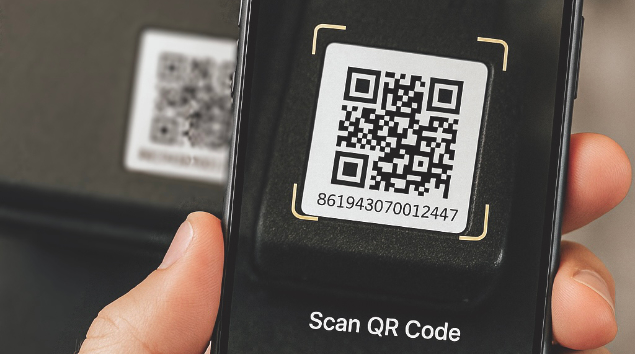
      🔗 Connect contacts Before you can share camera locations and their recordings with other users, you must first connect your account with your friend's. Here's how: Open the Modernhunter app and go to Menu → Contacts. Option A: Share the code at the top of your contact page with your friend. Your friend enters this code using the keyboard icon (1) in the top right corner. Option B: Show your friend the QR code from your contact page (Show QR code) and they scan it using the camera icon (2) in the top right corner. The other person will receive a contact request and confirm it. → Now you are connected and can share camera locations with each other. 📍 Share location Open Locations in the menu. Select the desired location and tap the gear icon ⚙ to access the location settings. At the bottom, you can select contacts who should have access to this location. 🔒 Set permissions Lock closed: Only viewing recordings allowed. Lock open: Full access (control cameras, request HD recordings, delete recordings).

    • What can I see and manage on the camera page?

      On the camera page, you will find a clear overview of all connected cameras. This allows you to immediately see the current status of each camera. Overview In the overview, you can see the following for each camera: the current location Date and time of the last server contact Time since the last online contact Camera detail viewWhen you select a camera, the detail view opens with all important information and functions. Camera informationAmong other things, the following is displayed here: Battery level Used storage space on the SD card Signal strength Current temperature SIM card information Actions and settingsYou can perform the following actions directly in the app: Format SD card Restart camera Start network search to find the best available mobile network Adjust additional settings via "Camera settings" Your advantageYou have full control over your cameras at all times and can manage them conveniently without having to be on site.