
Queue &
communication interval.
Two terms in the settings of your Hunter 4G Mini keep raising questions. Here you'll learn, in plain terms, how the camera communicates with the server, what the queue does and which interval proves itself out in the field – without draining the battery unnecessarily.
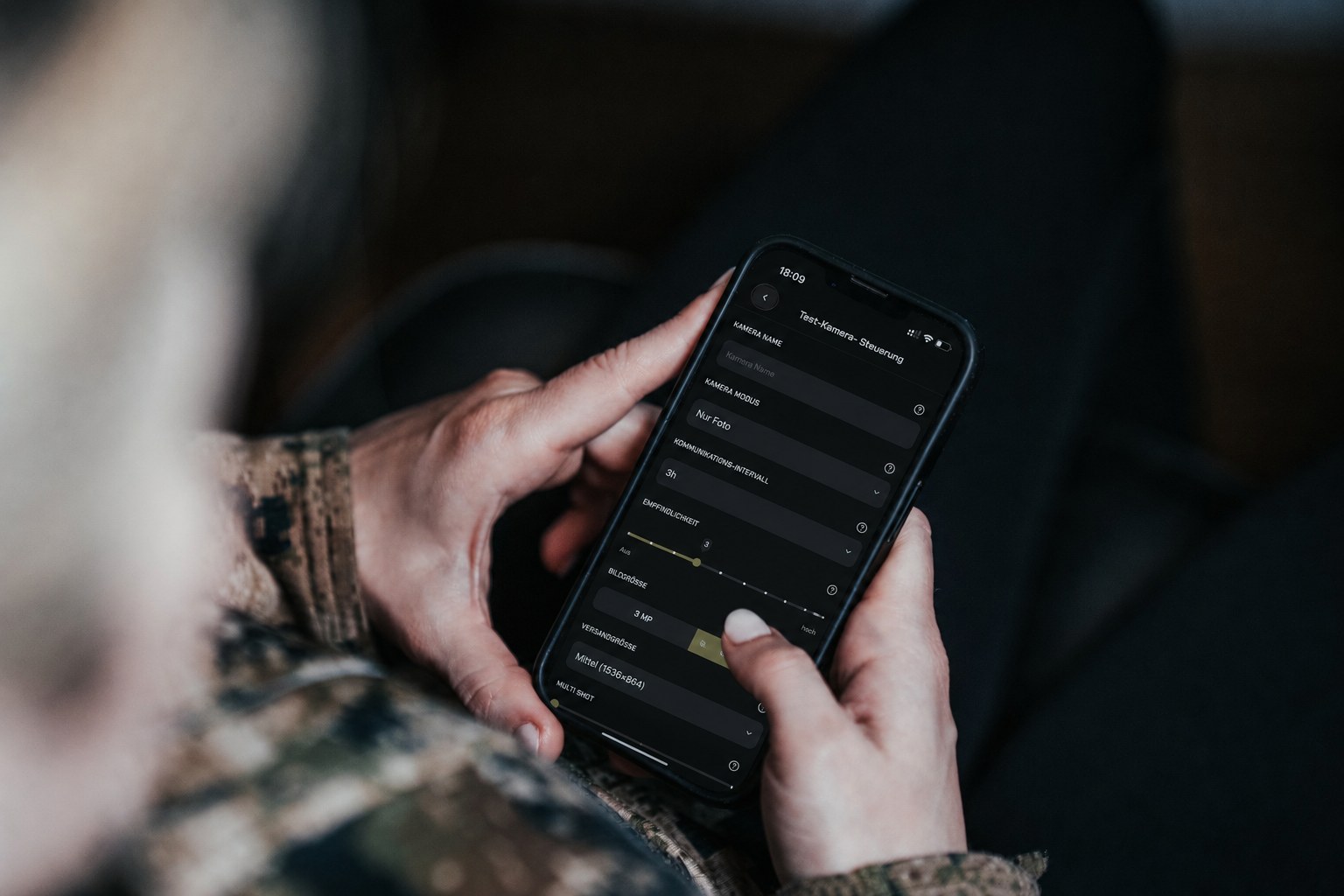
Captures always arrive instantly. The communication interval only controls how quickly the camera picks up commands from the App – not how quickly it sends photos.
Send instantly, sleep smartly.
To make the battery last as long as possible, the camera runs in a power-saving mode during normal operation – a kind of deep sleep. In this state it is not permanently online and cannot receive commands at the very moment you trigger them in the App.
Only the motion sensor stays active. As soon as something moves within the detection area, the following happens:
- The camera wakes up.
- It takes a picture and sends it immediately.
- It then returns to deep sleep.
This very deep sleep is the reason for the long runtime – and at the same time the reason why a queue is needed.
What the queue does.
When the camera is asleep, it cannot receive a command from the App straight away. So that no command is lost regardless, all commands from the App and WebApp are stored in a queue.
- Every command stays safely stored, even when the camera is currently unreachable.
- The next time the camera establishes a connection, it retrieves all pending commands automatically and carries them out.
- You don't have to repeat a command – it's already queued.
The queue is not a flaw but a deliberate principle: it combines long battery life with reliable remote control.
When the camera goes online.
The Hunter 4G Mini establishes a connection on exactly three occasions:
- When sending a photo or video – that is, on every motion trigger.
- When the camera restarts.
- Once the communication interval has elapsed.
On each of these connections, the camera transmits its status (battery, signal, storage), retrieves all pending commands and applies any new settings.
Understanding the interval correctly.
The communication interval determines how often the camera additionally checks in with the server on its own – even without a motion trigger. Important: it does not affect how quickly a photo is sent. On motion, the image always goes out immediately.
An overview of the possible settings:
| Setting | Meaning | Power consumption |
|---|---|---|
| 24 hours | Factory setting – the camera checks in once a day | Very low |
| 6 hoursRecommended | Our recommendation for normal operation | Low |
| 3 hours | For shorter response times to commands | Somewhat higher |
| Real-time | The camera stays permanently connected | Extremely high |
If the factory setting of 24 hours feels too sluggish, set the interval to 6 hours. The camera then picks up its pending commands four times a day – at only slightly higher power consumption.
The 5-minute window.
The online status indicator shows when the camera last had contact with the server. For the Hunter 4G Mini, the following applies:
- After sending a photo, the camera shows the status “Online” for 5 minutes.
- During these 5 minutes, commands are received and carried out immediately – ideal for switching, say, to a 10-second video right after a capture.
- Once it expires, new commands go back into the queue.
Request a capture – or cancel it.
- Open the camera page and select your camera.
- In the upper third, tap “Request image/video”.
- The request is carried out – immediately (within the 5-minute window) or at the next connection.
- Go back into the camera settings.
- Confirm the prompt asking whether the pending command should be deleted.
- The command is removed from the queue.
The real-time mode.
In real-time mode, the camera stays connected to the server permanently – like an uninterrupted phone call. The only effect: commands from the App are transmitted immediately instead of waiting for the next connection.
- No effect on the sending of captures – images always go out immediately anyway.
- No effect on Coin consumption – the connection alone costs no Coins.
Real-time mode has an extremely high power consumption: the batteries are empty in about 10 days. So only use it with an external power source (solar panel/battery pack) – or only briefly, while you are actively working with the camera.
Like a smartphone.
Picture your camera as a smartphone:
Always online
Like a phone that's switched on: commands arrive instantly – but the battery drains quickly and has to be recharged regularly.
In deep sleep
The camera sleeps most of the time and only wakes up when it's needed. That's exactly why a single set of batteries lasts for weeks or even months.
The queue is like an answering machine here: even when the “phone” is switched off, no message is lost – it's dealt with as soon as the camera next “picks up”.
Daily report.
Regardless of the interval, the Hunter 4G Mini can send a report once a day – with battery level, signal strength and free storage. This keeps the camera status on “Active” even during quiet periods.
- Default time window: between 5:00 and 7:00 p.m.
- Configurable: enable it in the camera menu under LTE → “Daily report” and set the time.
Which setting for you?
Stick with 24 hours. Your captures still arrive instantly.
6 hours – the best compromise between response time and power consumption.
3 hours, with somewhat higher consumption.
Real-time mode for instant commands – then switch back afterwards.
FAQ: queue & interval.
Do my captures arrive faster if I shorten the interval?
No. On motion, captures are always sent immediately. The communication interval only affects how quickly the camera retrieves commands from the App.
Does a command get lost when the camera is offline?
No. Every command is stored in the queue and carried out automatically at the next connection.
Why isn't my camera permanently “Online”?
Because it runs in power-saving mode to conserve the battery. It checks in when sending a photo, when it restarts and once the communication interval has elapsed.
How long is the Hunter 4G Mini reachable after a photo?
About 5 minutes. Within this window, commands are carried out immediately; after that, they go back into the queue.
Does real-time mode cost more Coins?
No. The connection alone uses no Coins. Coins are only incurred when sending captures. However, real-time mode significantly increases power consumption.
Where do I set the communication interval?
In the camera settings: select the camera → Settings. There you can change the interval from the factory setting (24 hours) to a shorter value or to real-time.
Send instantly, control smartly.
The Hunter 4G Mini combines the best of both worlds: captures always arrive instantly – and power-saving mode conserves the battery. For most hunting areas, an interval of 6 hours is ideal; if you want faster control, choose 3 hours; if you need maximum runtime, stick with the factory setting. Real-time mode is best kept ready for special situations with an external power source.