Modernhunter Solutions GmbH · App & trail-camera platform
Home/Guide/Connect Zeiss Secacam
Guide · Third-party camera integration

Zeiss Secacam
to Modernhunter.

With Modernhunter you collect the images from your trail cameras in one system, independent of the manufacturer – including Zeiss Secacam. This guide shows you step by step how to integrate your Zeiss camera using the share function of the Secacam app.

Reading timeapprox. 6 min
DifficultyEasy
ManufacturerZeiss Secacam
Last updatedJune 2026
How it works

Shared, not forwarded.

Unlike with most third-party brands, with Zeiss you do not enter a receiving address in the camera. Your Zeiss camera sends its photos to your Zeiss account as usual – and from there you additionally share them with Modernhunter.

So that Modernhunter can assign the incoming photos to the right account and the right camera, you add a personal camera code in the format mh-xxxxxx to the camera name in the Zeiss Secacam app. This code is the key to the assignment – without it the photos do reach us, but they cannot be assigned to anyone.

1
Modernhunter app
Add the camera and copy the camera code.
2
Zeiss Secacam app
Rename the camera and insert the code into the name.
3
Zeiss Secacam app
Share the camera with secacam@mh-cam.de.
4
Modernhunter
We confirm the share – your photos appear at the location.
Requirements

What you should know beforehand.

Three points that are different with Zeiss Secacam than with other brands:

01

SIM lock from the factory

Zeiss cameras are tied to the Zeiss SIM card. A Modernhunter SIM card cannot be used in Zeiss cameras – your camera stays on the Zeiss tariff.

02

No email forwarding

Zeiss cameras do not send photos by email and offer no SMTP forwarding. The integration works exclusively via the share function of the Secacam app.

03

Zeiss account required

Your camera must already be set up in the Zeiss Secacam app and be delivering photos there. Only then do you additionally add it in Modernhunter.

1 · Modernhunter

Add the Zeiss camera.

Duration: about two minutes.

  1. Open the Modernhunter app and go to the Cameras menu.
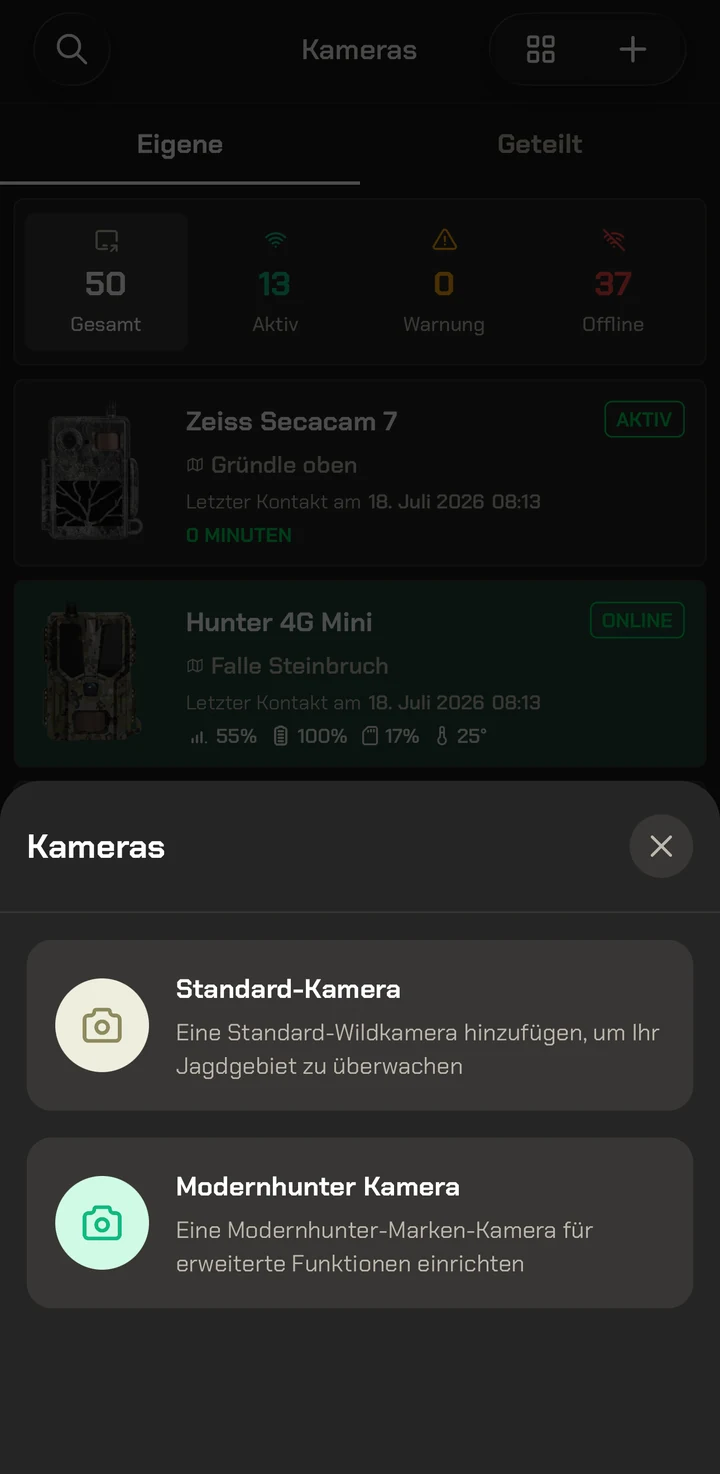
  2. Tap the plus icon in the top right and choose Standard camera.
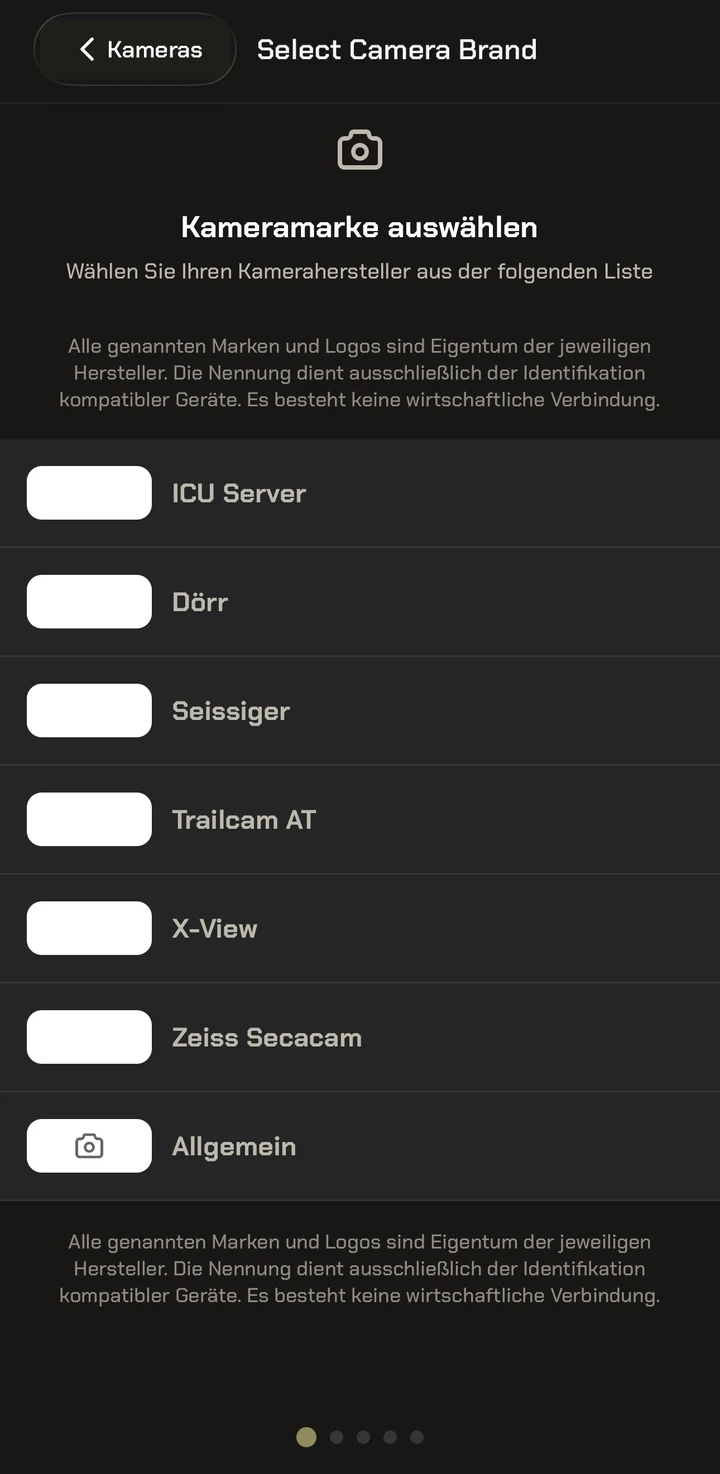
  3. Select Zeiss Secacam as the camera brand.
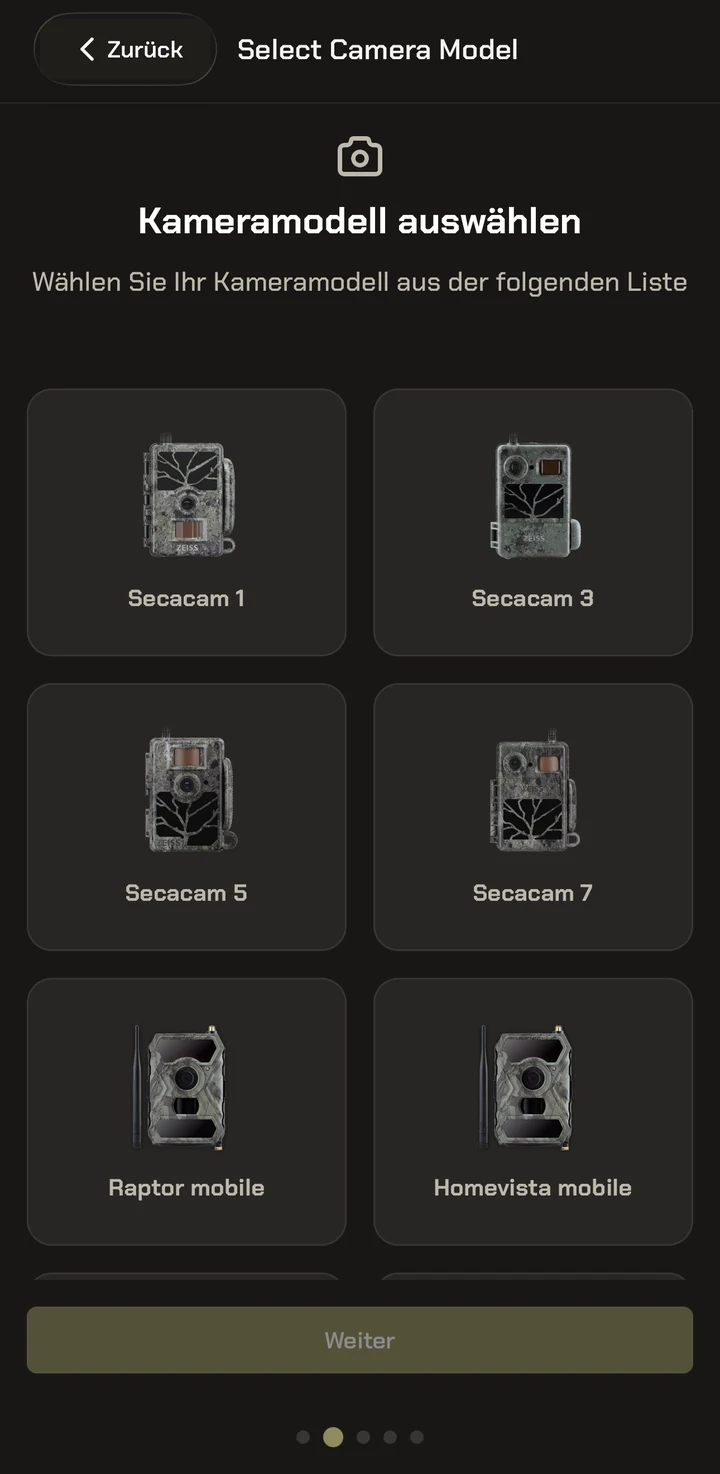
  4. Choose the matching camera model – for example Secacam 1, 3, 5 or 7 – and confirm with Next.
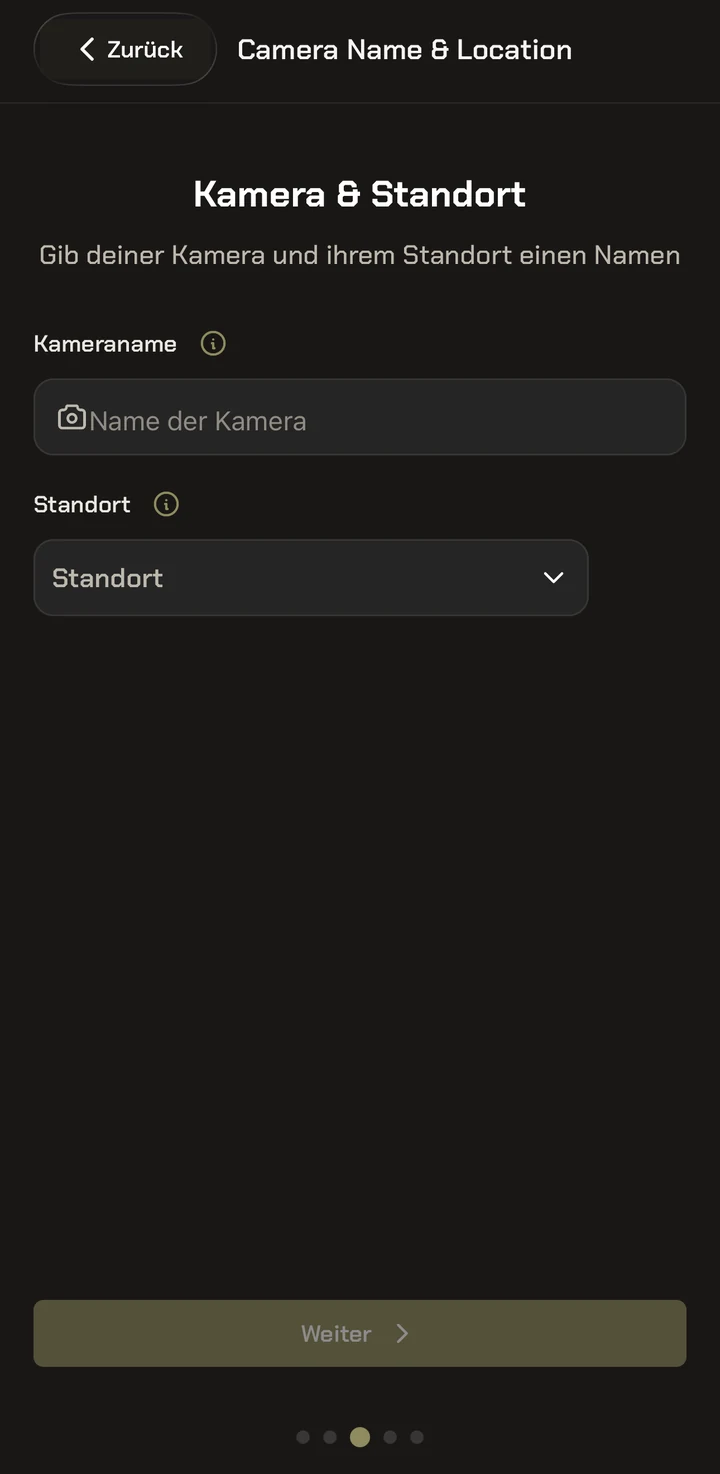
  5. Assign a camera name and select the location where the camera is mounted.
  6. Skip the SIM card step – your Zeiss camera continues to use the Zeiss SIM.
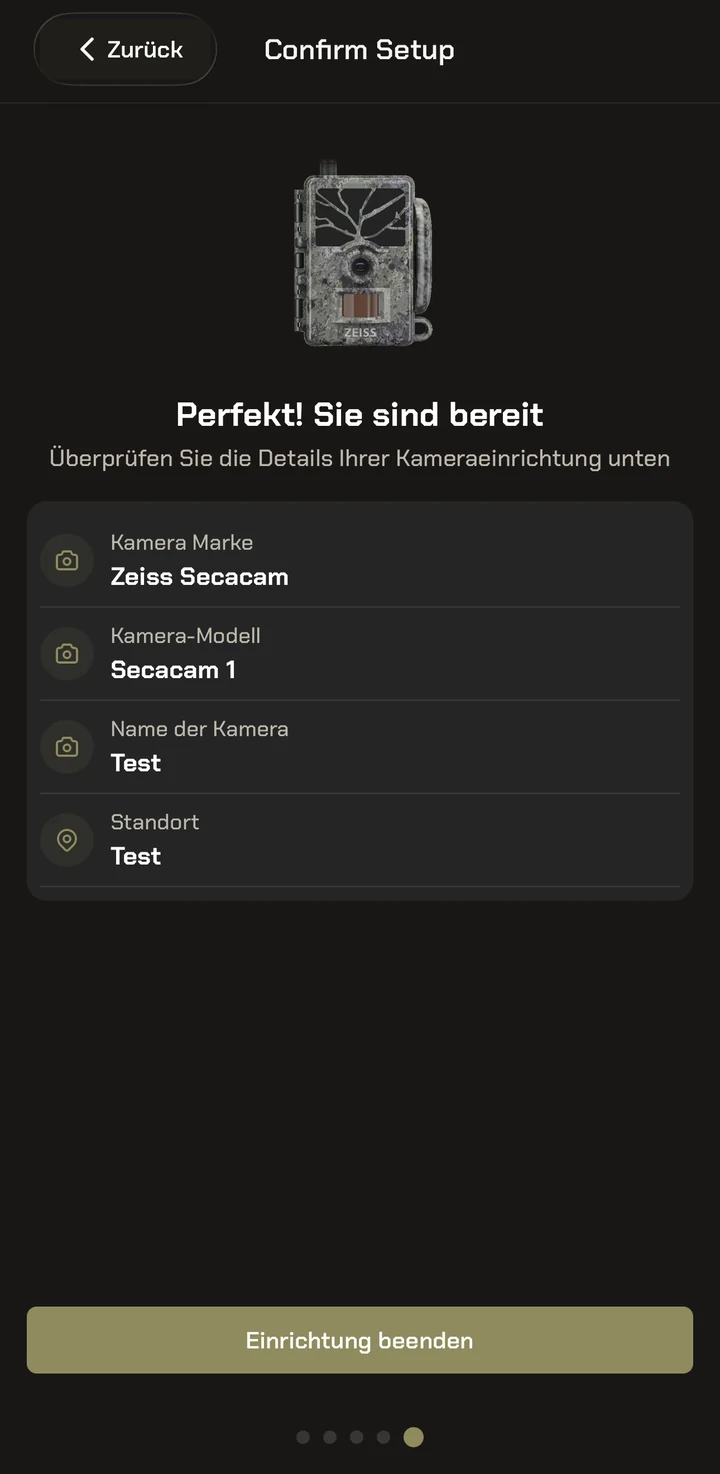
  7. Check the details and confirm with Finish setup.
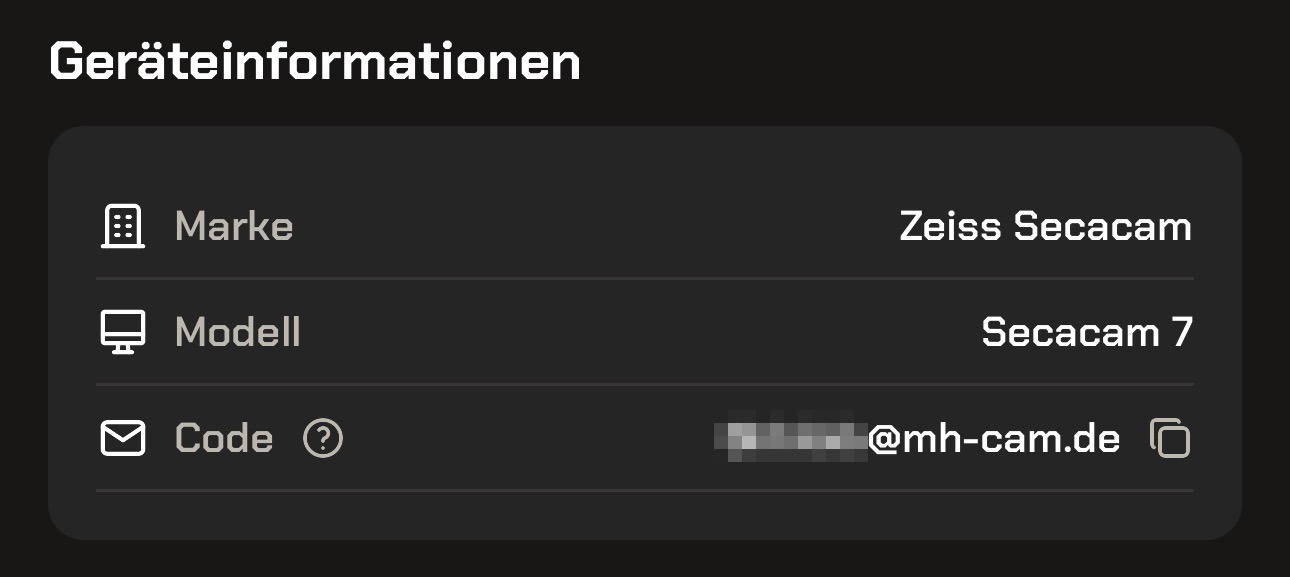
  8. Open the newly created camera and scroll to the Device information section.
  9. There, under Code, you will find your personal camera code in the format mh-xxxxxx. Use the copy icon next to it to copy it to the clipboard – do not type it out.
Transfer the code safely

Always copy the code using the copy icon rather than typing it out. A single typo will later prevent your photos from being assigned.

08:54
Modernhunter app: camera overview with the open selection menu “Standard camera” and “Modernhunter camera”
CamerasPlus icon → Standard camera
08:55
Modernhunter app: list of camera brands with the entry Zeiss Secacam
Camera brandSelect Zeiss Secacam
08:55
Modernhunter app: selection of the camera model with the Zeiss Secacam models
Camera modelSecacam 1, 3, 5 or 7
08:55
Modernhunter app: input form for camera name and location
Camera & locationAssign a name and location
08:55
Modernhunter app: summary of the camera setup with brand, model, name and location
ConfirmFinish setup
08:56
Modernhunter app: Device information section with brand, model and the individual camera code along with the copy icon next to it
Device informationCopy the code using the copy icon
08:56
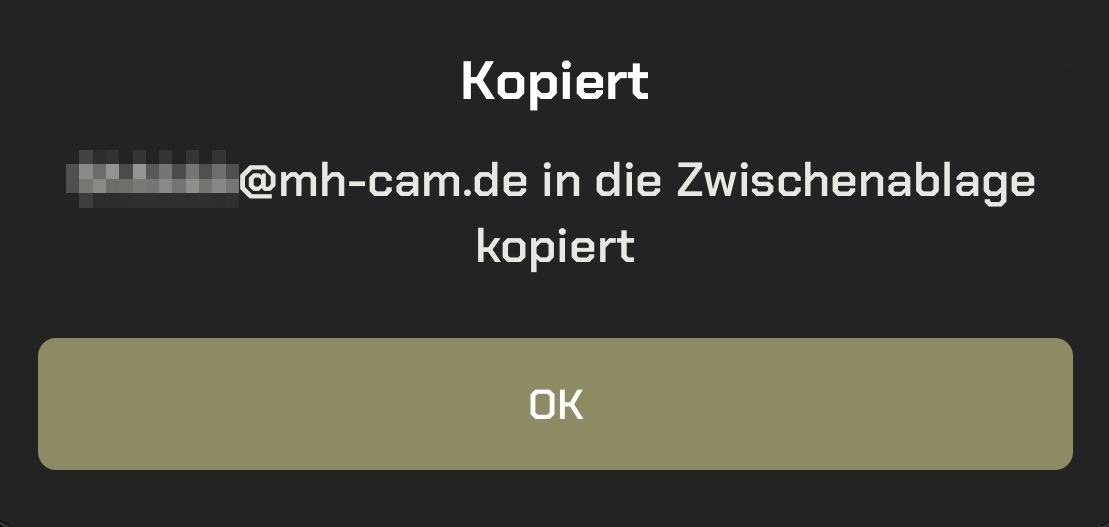
Modernhunter app: confirmation that the individual camera code has been copied to the clipboard
CopiedThe code is on the clipboard
2 · Zeiss Secacam app

Rename the camera.

Have the code you copied earlier ready.

  1. Open the Zeiss Secacam app and go to the Cameras section.
  2. Select the camera you want to connect to Modernhunter.
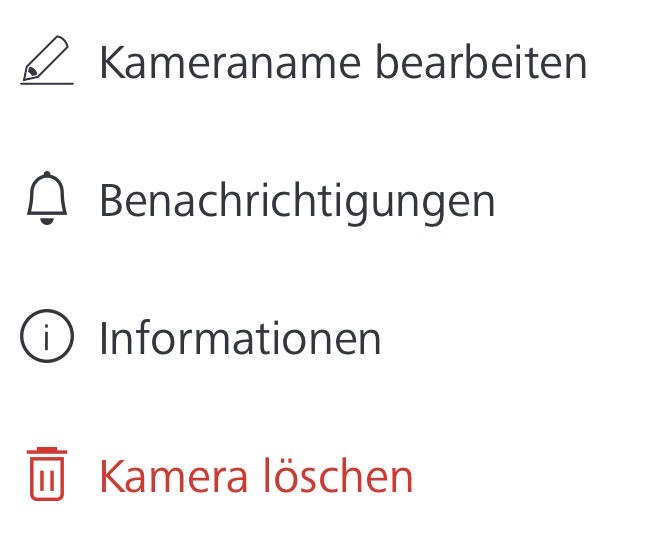
  3. Tap the gear icon in the top right.
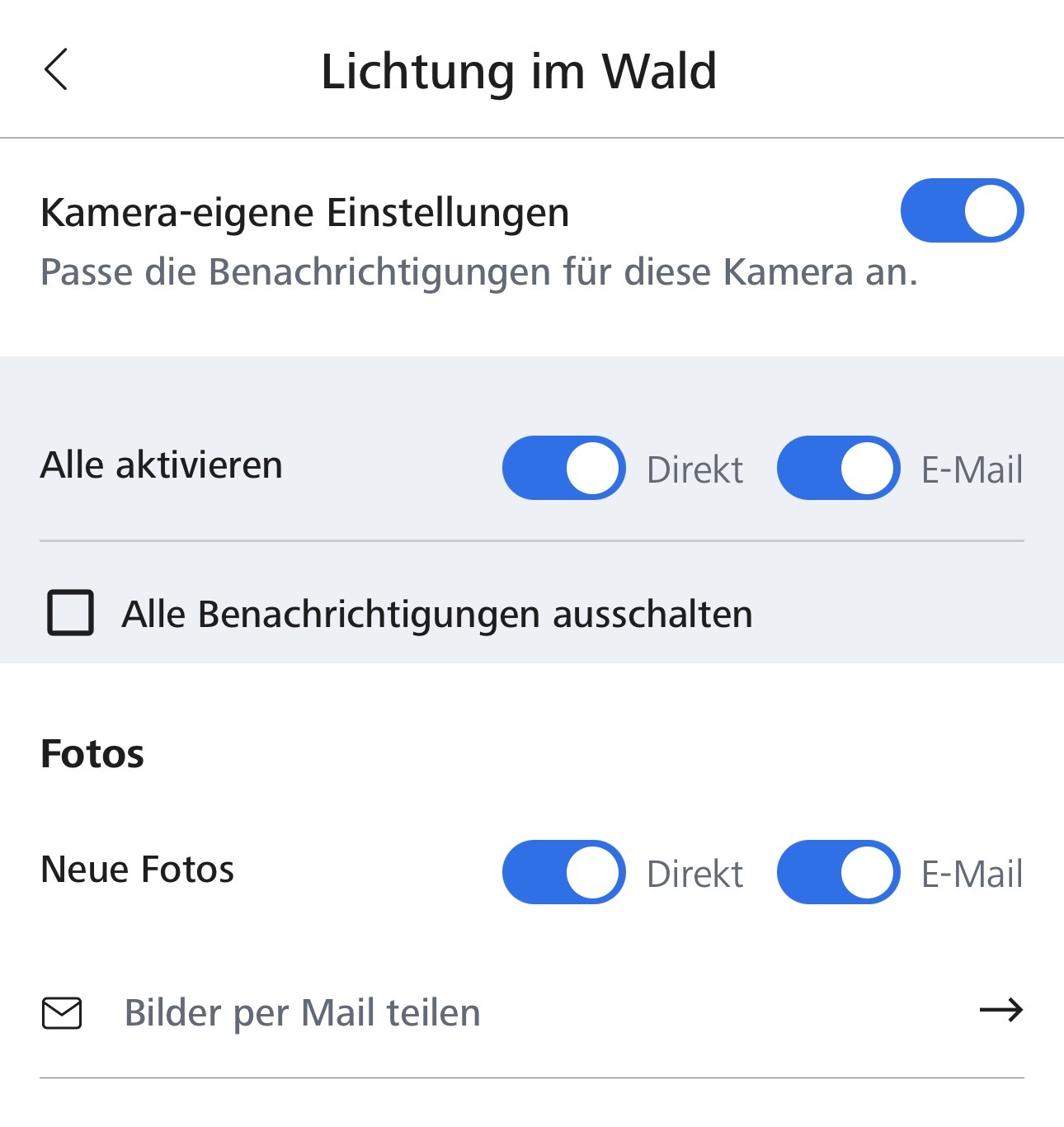
  4. Under Camera name, add a space after the existing name and paste in your copied Modernhunter code – the name then looks like this, for example: Secacam 7 mh-xxxxxx.
  5. Save the change.
The single most common mistake

If the camera is named incorrectly, we cannot assign the incoming photos to any camera – and no images are forwarded to you. In practice the code is missing entirely, is stuck to the name without a space, has been replaced by an email address, or an example code from a guide ends up in the name instead of your own. None of that works.

Right and wrong

The code must be separated by a space and appear in the name exactly as the Modernhunter app displays it. The rest of the camera name is up to you. The wrong examples come from real customer accounts:

  • Secacam 7 mh-xxxxxxCode separated by a space and copied over unchanged.
  • Sauenloch mh-xxxxxxThe name in front is up to you – what matters is the separated code at the end.
  • SauenlochThe code is missing entirely. The photos reach us, but cannot be assigned to any account.
  • secacamproplusmh-k64575The code is stuck to the camera name without a space and is therefore not recognised.
  • Schlafkanzel mh - xxxxxxSpaces inside the code. The code has to stay in one piece.
  • dgh464@mh-cam.deAn email address instead of the code. Zeiss cameras are not connected by email – only the code from the device information belongs in the name.
  • Schlafkanzel mh-xxxxxxThe placeholder from this guide instead of your own code. Every camera has its own code – only the one from your Modernhunter app works.

mh-xxxxxx stands for your personal code – the one your camera shows in the Modernhunter app under Device information → Code.

Always your own code

Every camera has its own code. Never take a code from a guide, from an email or from another one of your cameras – it then belongs to a different camera and your photos will not be assigned. Always fetch the code fresh using the copy icon in the device information of the camera concerned.

3 · Zeiss Secacam app

Set up the share.

Stay in the Zeiss app with the camera open.

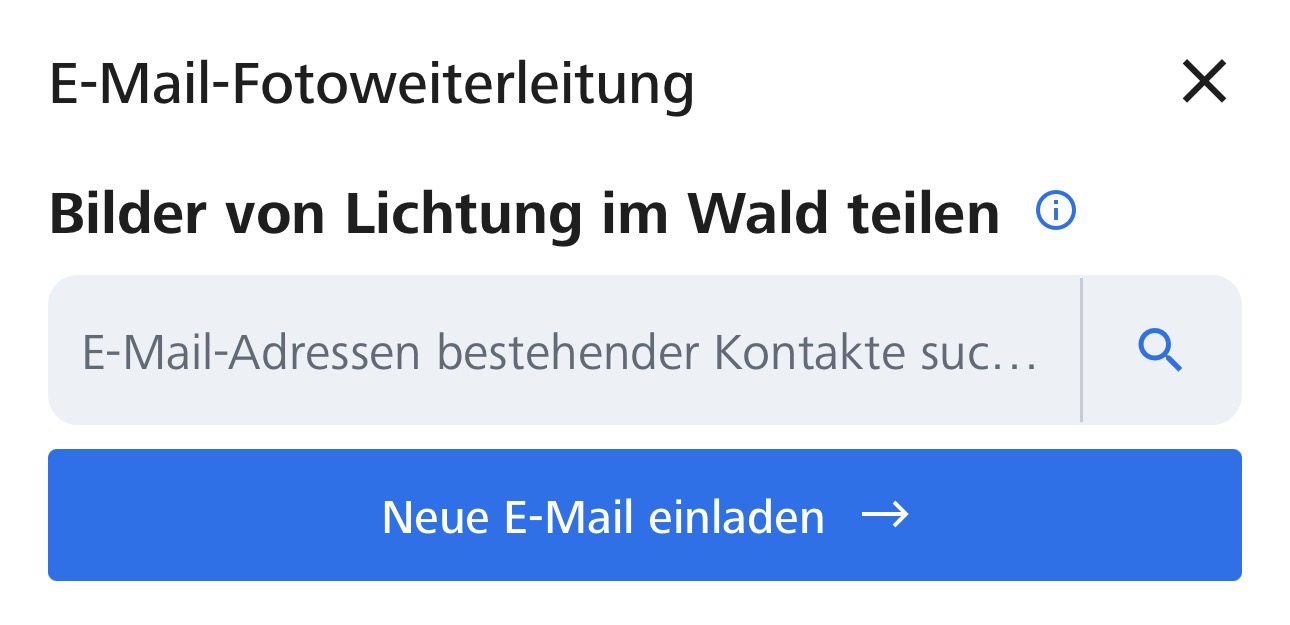
  1. With the camera open, choose Share camera.
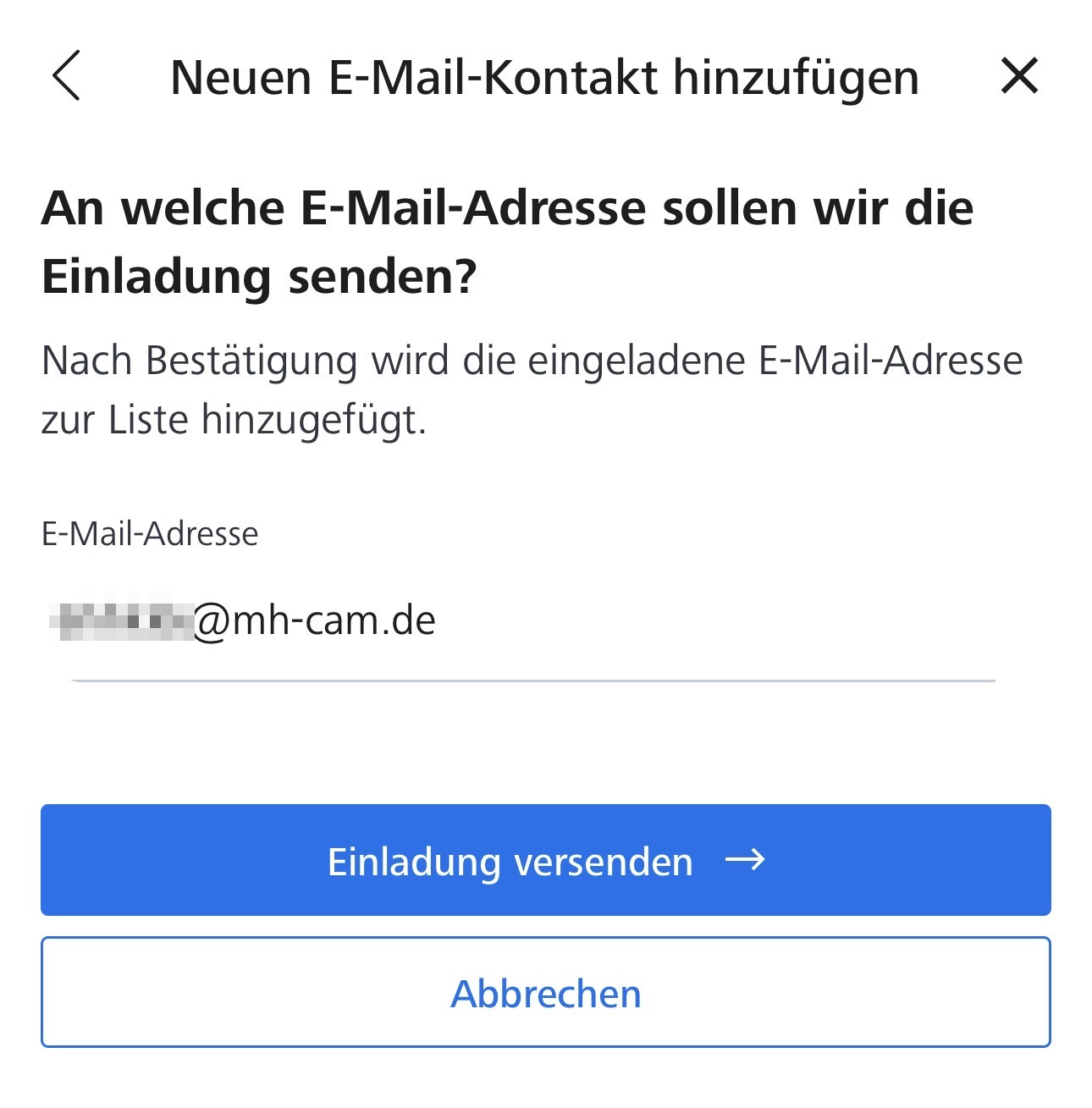
  2. Select Add new contact.
  3. Enter secacam@mh-cam.de as the recipient email address.
  4. Send the share. Modernhunter then receives an invitation link and confirms the share – this can take a little time.
  5. As soon as the share is confirmed, the setup is complete. New photos appear automatically in your Modernhunter account.
Where the photos appear

Your Zeiss photos appear at the location you assigned in step 1 – as a camera of your own. They do not appear under “Shared”: that section is intended exclusively for cameras that another Modernhunter user shares with you.

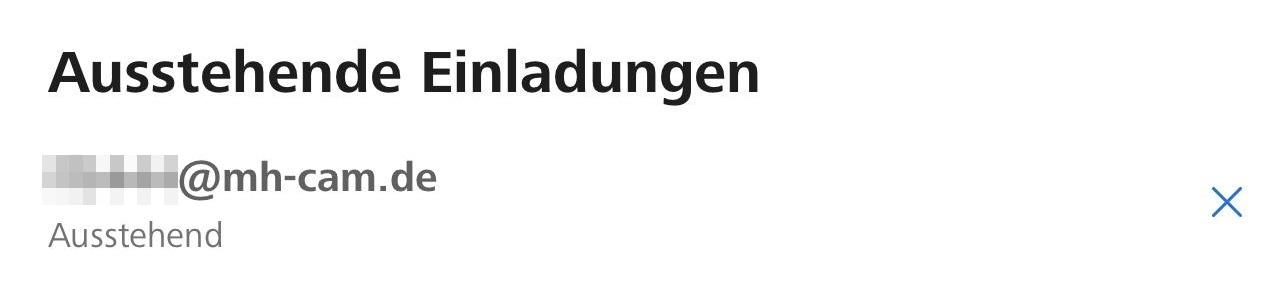
Invitation still “pending”?

In isolated cases the Zeiss account continues to show the invitation as pending, even though we confirmed it long ago. That is beyond our control – in this case please contact Zeiss support.

After setup

Test it once – then it just runs.

With this short test procedure you make sure your Zeiss photos pass through cleanly and arrive in the Modernhunter system.

If nothing arrives – check
  • Is the code mh-… in the Zeiss camera name exactly and completely correct?
  • Is the share with secacam@mh-cam.de still active in the Zeiss app?
  • Have you looked at the location – and not under “Shared”?
  • Is the camera delivering photos to your own Zeiss account at all?
  1. Trigger a test photo on the camera.
  2. First check whether the photo arrives in your own Zeiss account.
  3. Then look in the Modernhunter system at the location you assigned to see whether the photo appears there.
  4. If the photo arrives at Zeiss but not at Modernhunter, it is almost always down to the code in the camera name or the share – check both points once more.
  5. If nothing arrives in the Zeiss account in the first place, the camera itself is the issue – check the mobile reception, the battery charge and the SD card.
Troubleshooting

Nothing arrives despite the share.

If no photos arrive in your Modernhunter account, one of these two causes is almost always responsible:

01

The code is missing or inexact

If the code is not in the Zeiss camera name, or not exactly right, the incoming photos cannot be assigned to any account. Add the code exactly in the format mh-xxxxxx – separated from the camera name by a space, with no space inside the code, no extra characters, no typos.

02

The share is not active

In the Zeiss Secacam app, check whether secacam@mh-cam.de is still entered as a contact and the camera is shared with that contact. If the entry is missing, set up the share again.

If a single camera still delivers nothing

In principle, every Zeiss camera shared with us should appear in your account. If it does not, despite a correct share, set it up again completely from scratch: delete the camera in Modernhunter, remove the Zeiss share, add the camera again in Modernhunter (you will receive a new code), paste the new code exactly into the Zeiss camera name and share the camera with secacam@mh-cam.de once more.

Done

All cameras – one account.

Your Zeiss Secacam trail camera is now connected to Modernhunter. All photos land automatically in your Modernhunter account – together with the images from your other cameras, no matter which manufacturer. Integrating cameras from other manufacturers is completely free with Modernhunter.

Connecting your Zeiss Secacam to Modernhunter · Ratgeber - Modernhunter